Boost Your Productivity with Trello: The Ultimate Guide
If you're someone who likes to keep things organized, you're likely always on the hunt for a tool that can help you streamline your tasks and projects. Look no further than Trello, a project management app that can help you stay on top of your work.

Trello is a popular web-based application used for project management and task tracking. It's a tool that allows individuals and teams to organize their work in a visual and easy-to-understand way. Trello was created in 2011 and has been growing in popularity ever since, with millions of users around the world.
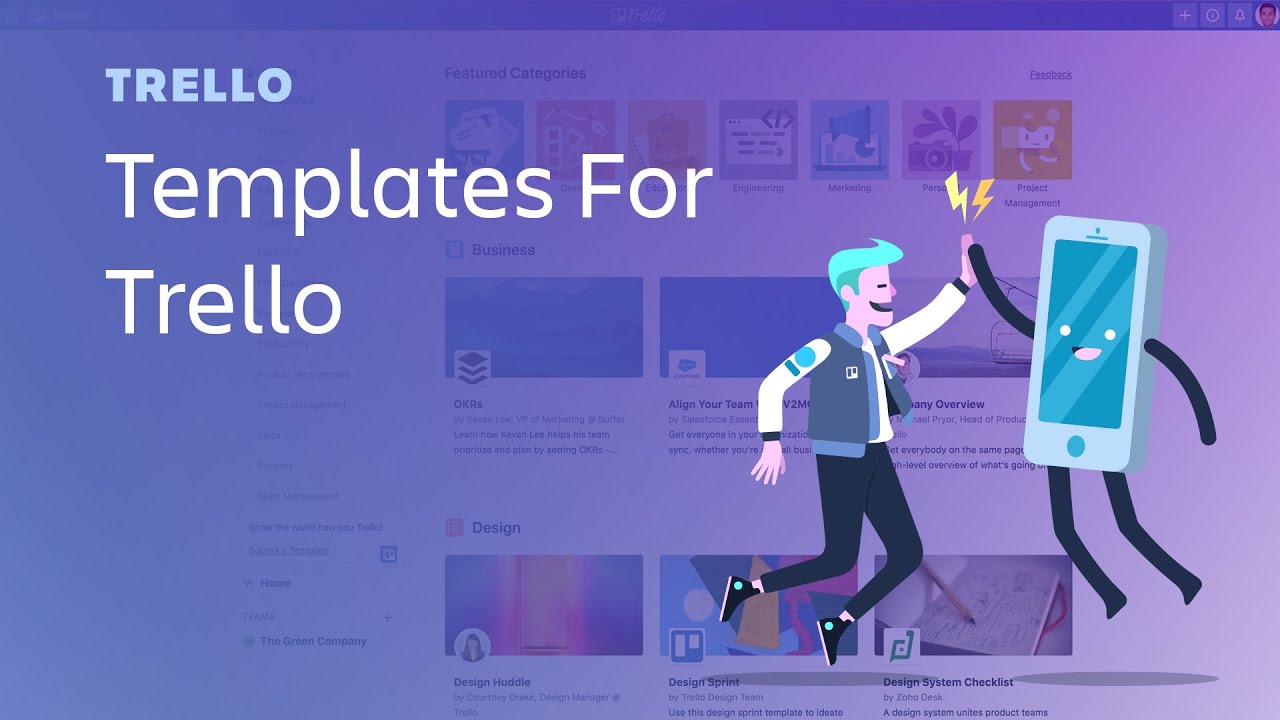
With Trello, you can create boards, lists, and cards that represent tasks and projects. The visual nature of the app makes it easy to see what needs to be done and who is responsible for doing it. Whether you're a freelancer or part of a large team, Trello can help you stay organized and on track.

Getting Started with Trello
If you're new to Trello, the first step is to sign up for an account. You can sign up for free using your email address, or you can sign up using your Google account. Once you've created an account, you'll be taken to the Trello dashboard.
The dashboard is where you can create new boards and manage existing ones. A board is like a virtual whiteboard where you can organize your tasks and projects. You can create multiple boards for different projects or clients.
Creating a Board
To create a new board, click the "Create new board" button on the dashboard. Give your board a name and a description, and choose whether you want it to be private or public. If you choose private, only the people you invite will be able to see the board.
Once you've created your board, you can start adding lists and cards. Lists represent different stages of your project or different categories of tasks. For example, you might have a "Do" list, a "Doing" list, and a "Done" list.
Adding Cards
Cards represent individual tasks or items on your to-do list. To add a card, click the "Add a card" button on the list where you want to add the task. Give your card a name and a description, and add any attachments or comments you need.
You can also assign a due date to your card and add labels to help categorize it. If you're working with a team, you can assign the card to a specific person and set up notifications so they receive an email or notification when the task is assigned to them.
Using Trello with a Team
One of the great things about Trello is its collaboration features. If you're working with a team, you can invite them to your board and assign tasks to specific team members.
When you invite someone to your board, you can choose whether they have read-only access or whether they can edit the board. You can also set up different levels of access for different team members.
When you assign a task to a team member, they'll receive a notification and can start working on the task. They can move the card from the list to the list as they work on it, so everyone on the team can see the progress being made.
Integrating Trello with Other Apps
Trello integrates with a variety of other apps, which can help you streamline your workflow even further. For example, you can integrate Trello with Slack, so you receive notifications in Slack when a task is assigned to you or when a card is moved to a different list.
You can also integrate Trello with Google Drive, Dropbox, and other file-sharing apps, so you can attach files to your cards and access them easily.
FAQs:
Q: Is Trello free?
A: Trello offers both free and paid plans. The free plan includes basic features and is suitable for personal use or small teams. The paid plans offer more advanced features and integrations.
Q: Can I use Trello on my mobile device?
A: Yes, Trello has mobile apps for iOS and Android, which allow you to access your boards and tasks on the go.
Q: Can I integrate Trello with other tools and services?
A: Yes, Trello offers integrations with a variety of tools and services, including Google Drive, Slack, and Jira.